Company settings is where you set up your company in the Sentrido Portal: your company details, who has access, training, emails, sign-in, scanners and your plan.
To open it, choose Company Settings in the menu on the left.
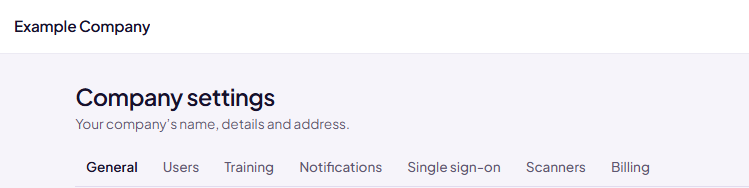
Who can open Company settings
Only the company Owner and Administrators can open Company settings. Other roles don't see it in the menu.
A few actions are for the Owner only:
- Saving changes to the company details
- Deleting the company
- Managing the subscription
To learn more about each role, see Users – Roles and Invitations.
The tabs
| Tab | What it's for |
|---|---|
| General | Your company's name, details and address. The Owner can also delete the company here. |
| Users | Who can sign in to Sentrido and what they can do. Invite people, change roles and remove people. |
| Training | Which policies and courses each role has to complete, and the training schedule: when it repeats, how items are released, and reminders. |
| Notifications | When Sentrido emails your team about changes in risk. |
| Single sign-on | Let your team sign in with their work account through your company's identity provider (for example Microsoft, Google or Okta). |
| Scanners | The computers that scan your network for you, and whether they're online. |
| Billing | Your plan and how you pay for it. |
Setting up for the first time
When your company is new, the dashboard shows a short setup guide with five steps:
- Run Sentrido Discovery
- Add your company details
- Choose how people sign in
- Check your team's training plan
- Choose risk change emails
Steps 2 to 5 take place in Company settings. When you open a tab from the setup guide, a banner at the top of the tab explains what to do. Choose Next step to move on. Most steps can also be skipped if they don't apply to you, but the training step can't. You can come back and change any of these settings at any time.
Was this article helpful?
That’s Great!
Thank you for your feedback
Sorry! We couldn't be helpful
Thank you for your feedback
Feedback sent
We appreciate your effort and will try to fix the article