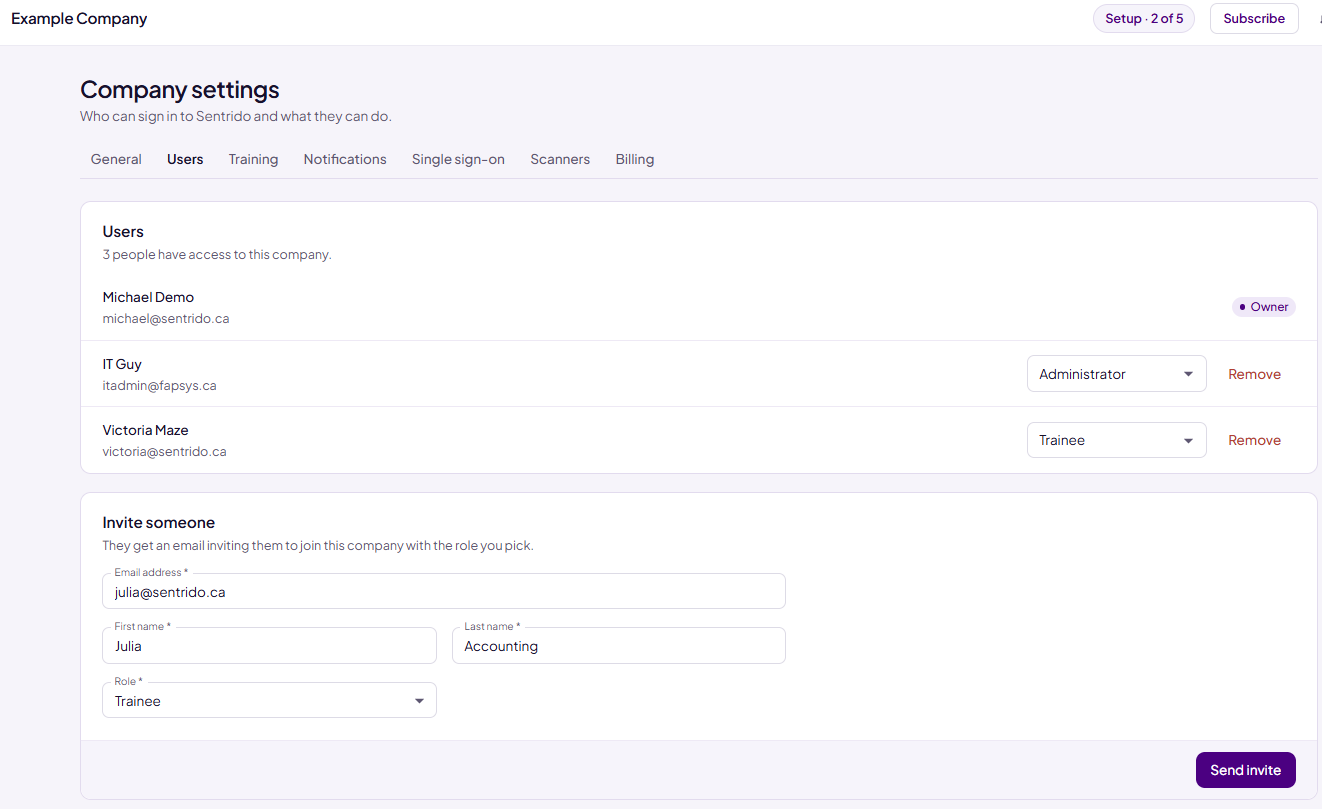
The Users tab shows who can sign in to your company in Sentrido and what each person can do. Here you can invite people, change their role and remove them.
To open it, go to Company settings → Users.
Roles
Each person has one role in your company. Give each person only the access they need for their work.
| Role | What they can do |
|---|---|
| Owner | The person who created the company. Can do everything an Administrator can, and is the only one who can save company details, manage the subscription and delete the company. Each company has one Owner. |
| Administrator | Looks after your networks and your team. Sees all scan results and devices, runs Sentrido Discovery, and manages Company settings (except the Owner-only actions above). Also completes the training you assign to Admins. |
| Trainee | Everyone else on your team. Signs in to read and sign the policies and courses you assign to Trainees. Doesn't see your network data. |
| Network Data Viewer | Can look at your scan results and devices, but can't change anything. Useful for an outside IT partner or an auditor. |
| Network Data Uploader | For a person who only runs one-off scans with Sentrido Discovery and sends the results. In the portal, they can only see their own profile. |
Note: To set up a computer that scans your network every day, an Owner or Administrator signs in to Sentrido Discovery on that computer once. A Network Data Uploader can't set this up. See Scanners – Computers That Scan Your Network.
Invite someone
- Under Invite someone, enter the person's Email address, First name and Last name.
- Choose their Role.
- Choose Send invite.
The person gets an email inviting them to join your company with the role you picked. They appear in the list straight away.
Note: Your plan may limit how many people you can add. If you can't add someone, check your plan on the Billing tab.
Change someone's role
- Find the person in the list.
- Choose a new role from the list next to their name.
The change saves straight away. If the person is signed in at that moment, they may need to sign out and back in to see their new access.
You can't change your own role, and nobody can change the Owner's role.
Remove someone
- Find the person in the list and choose Remove.
- Choose Remove again to confirm.
They lose access to your company straight away. Their own Sentrido account isn't deleted, and you can invite them again later. The Owner can't be removed.
People who join through single sign-on
If your company uses single sign-on, people from your verified email domains can join by signing in with their work account. They start as Trainee. You can change their role here at any time. See Single Sign-On – Setting Up SSO.
Was this article helpful?
That’s Great!
Thank you for your feedback
Sorry! We couldn't be helpful
Thank you for your feedback
Feedback sent
We appreciate your effort and will try to fix the article