Single Sign-On (SSO) allows users to sign in to Sentrido using your identity provider through OpenID Connect (OIDC).
Note: This configuration requires technical knowledge of identity providers and authentication settings. If you are unsure how to complete these steps, contact your IT administrator or identity provider for assistance.
Before You Begin
Before you configure SSO, make sure you have the following information from your identity provider:
- Issuer URL (.well-known URL)
- Client ID
- Client Secret
- Supported claims for email and display name
You will also need the Redirect URI shown in Sentrido, as this must be added to your identity provider’s OIDC application settings.
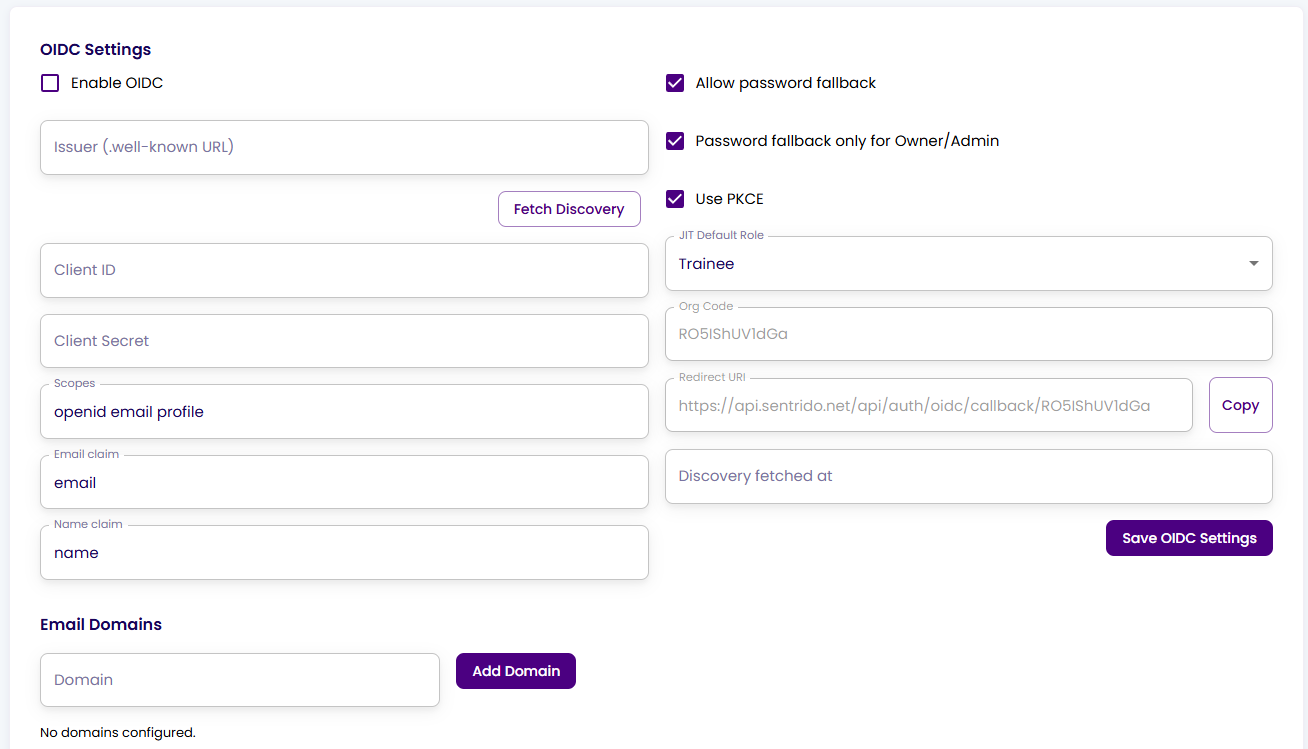
Configure SSO
- Open the OIDC Settings page in the Sentrido Admin Portal.
- Enter the Issuer (.well-known URL) provided by your identity provider.
- Click Fetch Discovery to retrieve the OIDC configuration.
- Enter the Client ID and Client Secret for your OIDC application.
- In Scopes, enter the scopes required by your identity provider. A typical value is:
openid email profile - In Email claim, enter the claim used for the user’s email address, for example:
email
This value must match the claim name returned by your identity provider. - In Name claim, enter the claim used for the user’s display name, for example:
name
This value must match the claim name returned by your identity provider. - Select any optional settings required for your environment:
- Allow password fallback allows users to sign in with a local password when needed
- Password fallback only for Owner/Admin limits password fallback to Owner and Admin users
- Use PKCE enables Proof Key for Code Exchange during the OIDC sign-in flow
- In JIT Default Role, select the role that will be assigned to users created automatically through Just-in-Time provisioning.
- Copy the Redirect URI shown in Sentrido and add it to the allowed redirect or callback URLs in your identity provider.
The Redirect URI configured in your identity provider must exactly match the Redirect URI shown in Sentrido. - If you want to restrict access by email domain, enter a value in Domain under Email Domains, then click Add Domain.
- Click Save OIDC Settings.
- After you have reviewed and confirmed all settings, select Enable OIDC to turn on single sign-on.
It is recommended to enable OIDC only after the configuration has been completed and verified, as enabling it too early may cause login issues. - Test SSO with a user account from your identity provider to confirm that sign-in works correctly.
If Just-in-Time provisioning is enabled, new users will be assigned the role selected in JIT Default Role unless that role is changed later by an administrator.
Field Reference
- JIT Default Role – The default role assigned to users created automatically during SSO sign-in
- Org Code – The organization code associated with the SSO configuration
- Redirect URI – The callback URL that must be configured in your identity provider
- Discovery fetched at – The date and time when the discovery metadata was last successfully retrieved
Verify the Configuration
After saving the settings and enabling OIDC, verify that:
- Users can sign in successfully with SSO
- The correct email address is returned
- The display name is mapped correctly
- New users receive the expected default role
- Redirect and fallback behavior work as expected
Was this article helpful?
That’s Great!
Thank you for your feedback
Sorry! We couldn't be helpful
Thank you for your feedback
Feedback sent
We appreciate your effort and will try to fix the article